Hardware Setup Troubleshooting
1. General Instructions
- The exam will be in a Proctored Environment.
- For supported web browsers, see the Minimum System Requirements section below.
- You should have at least 200 MB of internet data to take the test.
- Please keep all browsers and apps disabled during the test to ensure optimal internet speed. Keeping other browsers or apps open may lead to violations and your test may get suspended.
- Please log in 15 minutes before the scheduled test time.
- It is advised that your laptop or mobile device be fully charged and remain on charging mode during the test.
- If taking the test via phone on Wi-Fi, enable airplane mode to avoid any calls during the test.
- Disable all notifications—browser, app, and desktop.
2. Minimum System Requirements
Mobile:
- CPU Speed: Quad Core 1.4GHz
- RAM (GB): 3 GB
- Frontal Camera – Resolution: > 2 MP
- Rear Camera – Resolution: > 3.0 MP
- Screen size: Smartphone: >= 5’’ (for user comfort)
- Storage Internal/External (GB): > 8 GB ( > 2GB Free Space)
- Location: GPS, Google Play Services
- OS Version:
- Android - 6.X, preferably the latest version of Android.
- iOS - 12.x, preferably the latest version of iOS.
- Internet Browser:
- Chrome on Android (any of the most recent 5 versions).
- Safari on iOS (any of the most recent 5 versions).
- Connection:
- Wi-Fi or 4G (data services) is required to take the test.
- Minimum internet speed of 512 Kbps. Recommended is > 1 Mbps for the best experience.
- Best Practices:
- Free up Memory: It's important to identify apps consuming the most memory on your Android device. Android allows you to check memory usage by navigating to Settings -> Memory, where you can view average memory usage over different time frames and stop non-essential apps consuming significant memory.
- For the low memory issue on Android - Please ask them to follow instructions on this link
- Use Third Party Booster apps - There are certain apps that can help to clean up your device’s RAM for better performance. Apps like Clean Master bring a ton of features to optimize your device’s performance but if you are only looking to clean your device’s RAM, it includes a cool “Memory Boost” feature that lets you free up RAM right from your home screen.
Desktop:
- CPU Speed: Minimum quad core, 1.4GHz. Recommended Intel i5 CPU or better.
- RAM (GB): Minimum 4 GB. Recommended is 8 GB for the best experience.
- Webcam – Resolution: > 3.0 MP
- OS Version: Windows - 10.X (64-bit), preferably the latest version of Windows. MacOS - 10.13.x (64-bit), preferably the latest version of MacOS.
- Internet Browser: Chrome / Safari / Firefox (any of the most recent 5 versions). It's recommended to update to the latest version of Chrome for the best experience.
- Connection: Wi-Fi and 4G (data services) to be able to work with data services. Minimum internet speed of 512 Kbps. Recommended is > 1 Mbps for the best experience.
3. Internet Connectivity Test
DNS Test:
-
Test: Open https://quicktest-prod-media.s3.ap-south-1.amazonaws.com/sample.png in a new browser window.
-
Result: You should see an image displayed.

-
Troubleshooting: If the sample image is not visible or an error occurs, there could be DNS server issues with your network. Please follow instructions at Setup DNS to update DNS servers and rerun this test to confirm the fix.
Speed Test:
- Test: Open Speed Test Page and click on start. Wait for the test to finish.
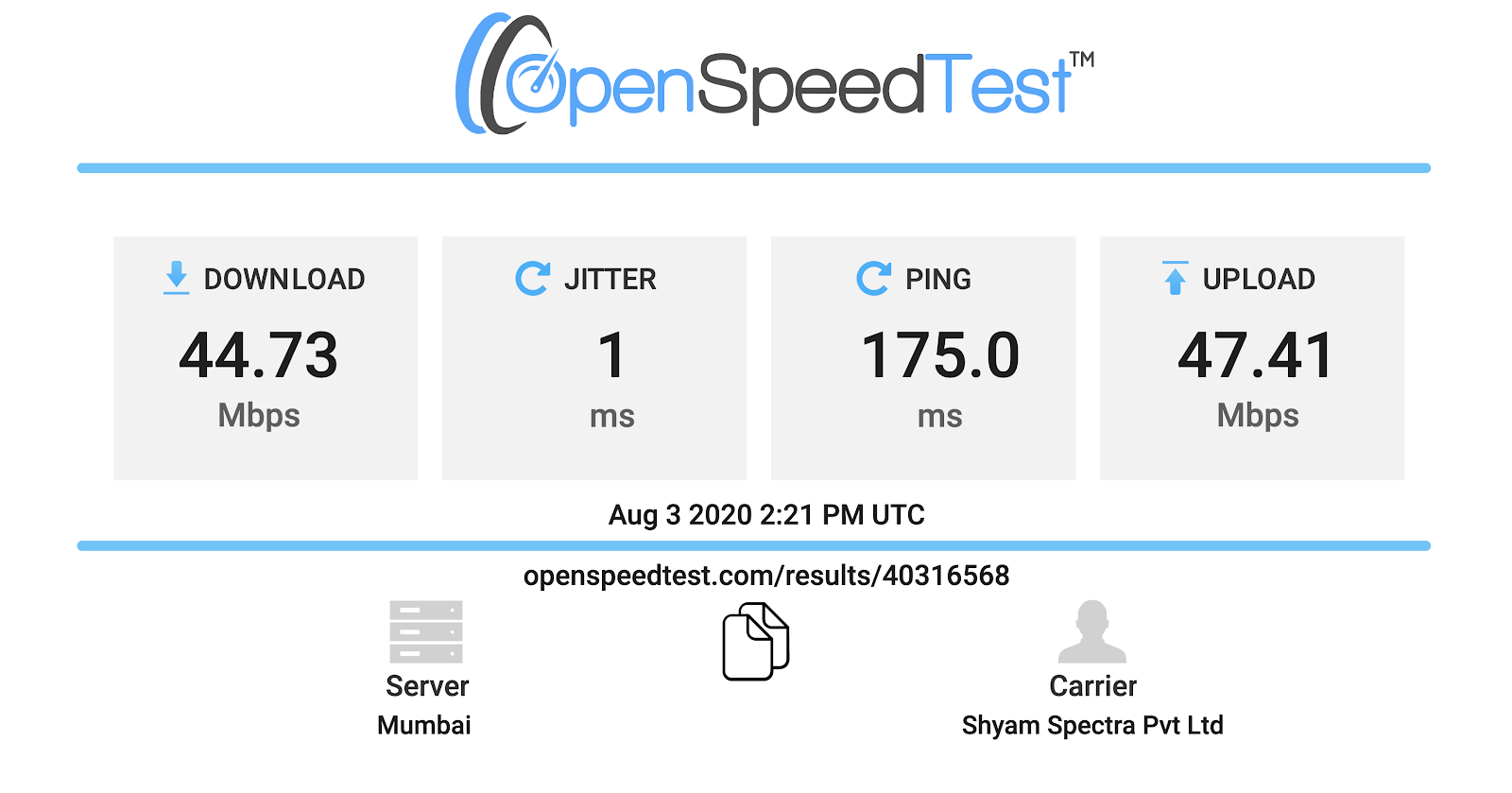
- Result: Download & Upload speed should be a minimum of 512 Kbps. Recommended is > 1 Mbps for the best experience. Ping should be less than 300ms and Jitter less than 20ms.
4. Camera/Microphone Test
-
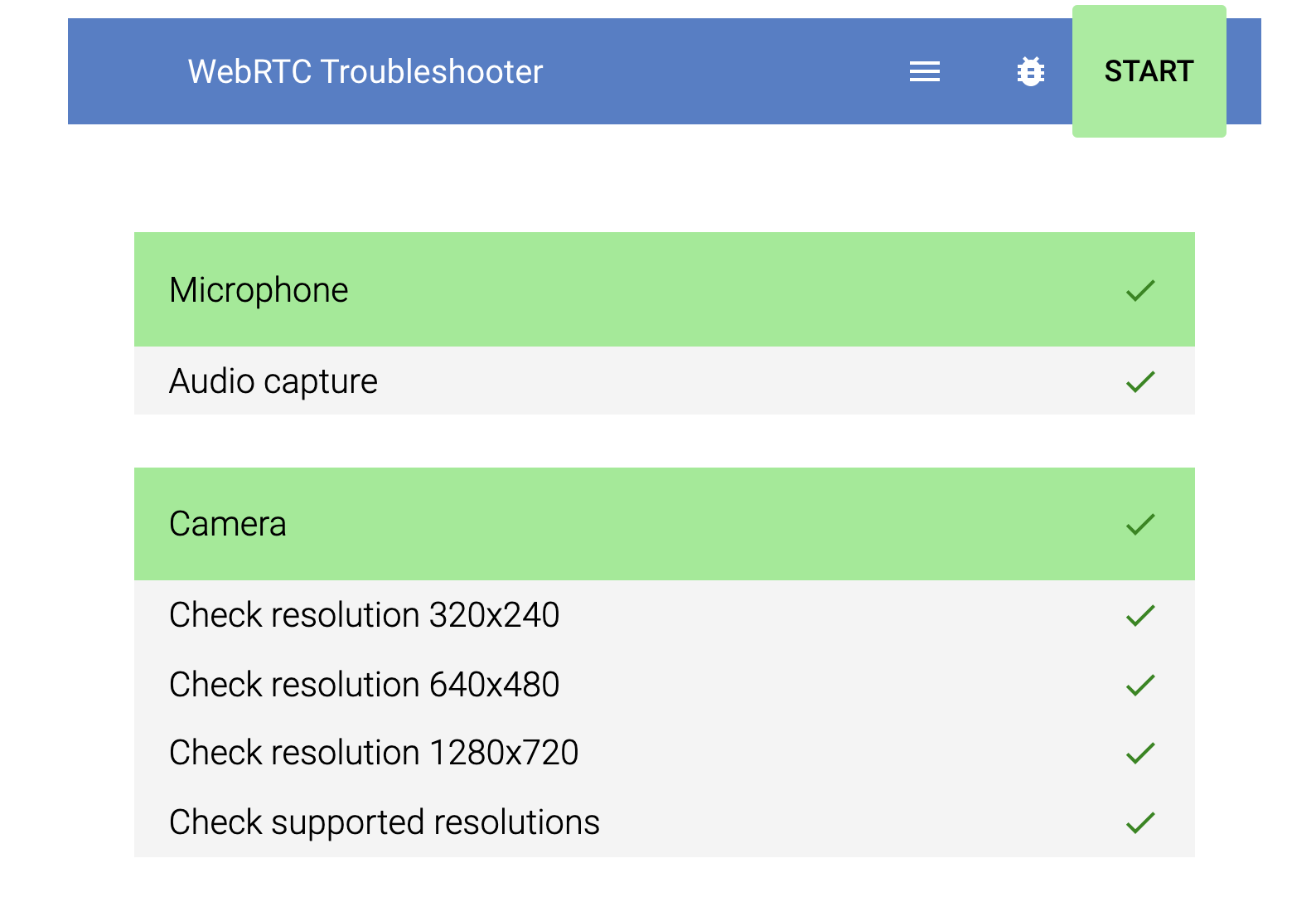
Test: Open https://webrtc-test.pod.ai/, click on the "START" button, and allow permissions when prompted.
-
Result: Both Camera and Microphone sections should be green.
5. Geolocation Test
- Test: Open Geolocation test and allow permissions when prompted.
- Result: Your location should be displayed in the white box.
6. Miscellaneous Issue Troubleshooting
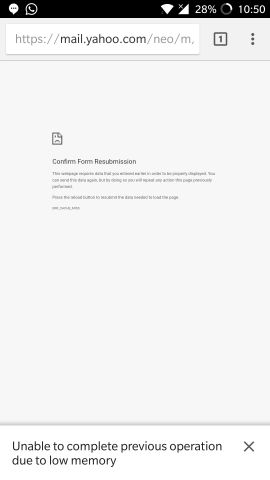
"Unable to complete operation due to low memory" Error:
-
Ensure all apps other than the web browser are closed.
-
Ensure no background apps are running and consuming memory.
-
If the above steps don’t resolve the issue, follow these steps:
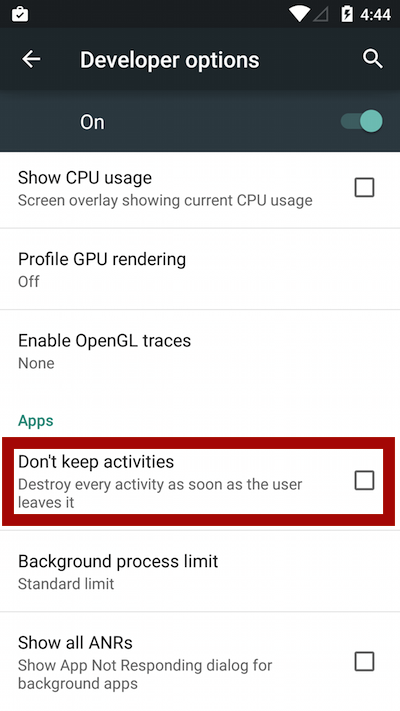
- Go to “Settings” and scroll down to select “Developer Options”.
- If you don’t find “Developer Options”, go to “About Device” and continue tapping the “Build Number” option until you see the “You are now a developer” message on your screen.
- Once you’re in the “Developer Options” menu, scroll down and uncheck the “Don’t Keep Activities” options to turn it off.